Signing in and finding your way
ZapBooking runs inside the Zaporion application shell, together with the other modules your organisation uses (Employee, Payroll, Documents, Templates, Inventory …).
Sign in
Open your organisation's application address and sign in with your work account. If the identity provider offers optional two-factor setup, you may skip it or set it up. After sign-in you land on your first module; choose Booking in the top bar.
:::note If there is no Booking tab The tab appears only for people whose role has a booking permission. If you expect it and it is missing, ask an administrator to map your role — see Roles and access. :::
The layout
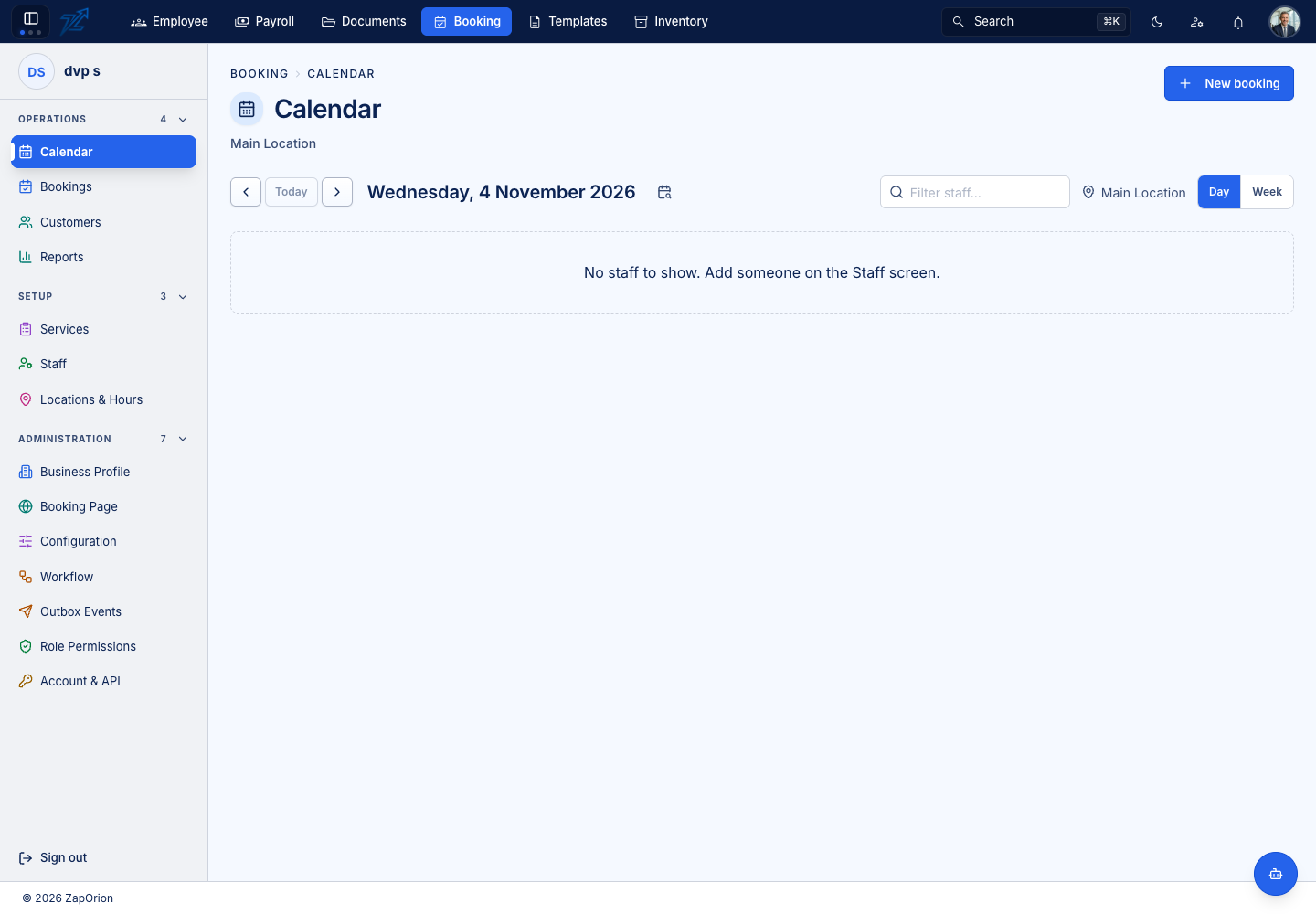
- Top bar — the sidebar toggle, the module tabs, Search (
⌘K/Ctrl+K), the theme toggle, notifications and your avatar. Choose another tab to switch module. - Sidebar — the Booking pages in four groups: Operations, Setup, Sales and Administration. Groups collapse; the number beside a group name is how many pages it holds for you.
- Page header — a breadcrumb such as
BOOKING › CUSTOMERS, the page title, and its main actions (for example Add customer) on the right.
What the sidebar shows you
The sidebar is the same for everyone only in structure. A page appears when both of these are true:
- Your role allows it. For example Calendar, Bookings and Waiting List need
booking:read; Customers needscustomer:read; Services, Resources and Packages needcatalog:read; Staff needsstaff:read; Payments needspayment:read; Promotions needspromo:manage; Reports needsreport:read; every Administration page needsbooking:admin. - The business has the feature switched on. Waiting List, Resources, Payments, Promotions (coupons or gift cards), Packages (packages or memberships), Reviews and Booking Page each belong to a feature (Waiting list, Resource booking, Payments, Coupons / Gift cards, Packages / Memberships, Reviews, Online booking). With the feature off the page is hidden.
A person with read access but not manage access still sees the data, with the buttons that would change it absent.
Search
⌘K / Ctrl+K opens the application's global search from anywhere. It finds pages and tabs across the modules you can open, people, and — where you have access — documents and inventory items.
Light and dark
The sun/moon button in the top bar switches the application between light and dark mode. The application remembers a choice for your account where it can.