Role permissions
Administration → Role Permissions — map each role to the permissions the product enforces. Needs booking:admin.
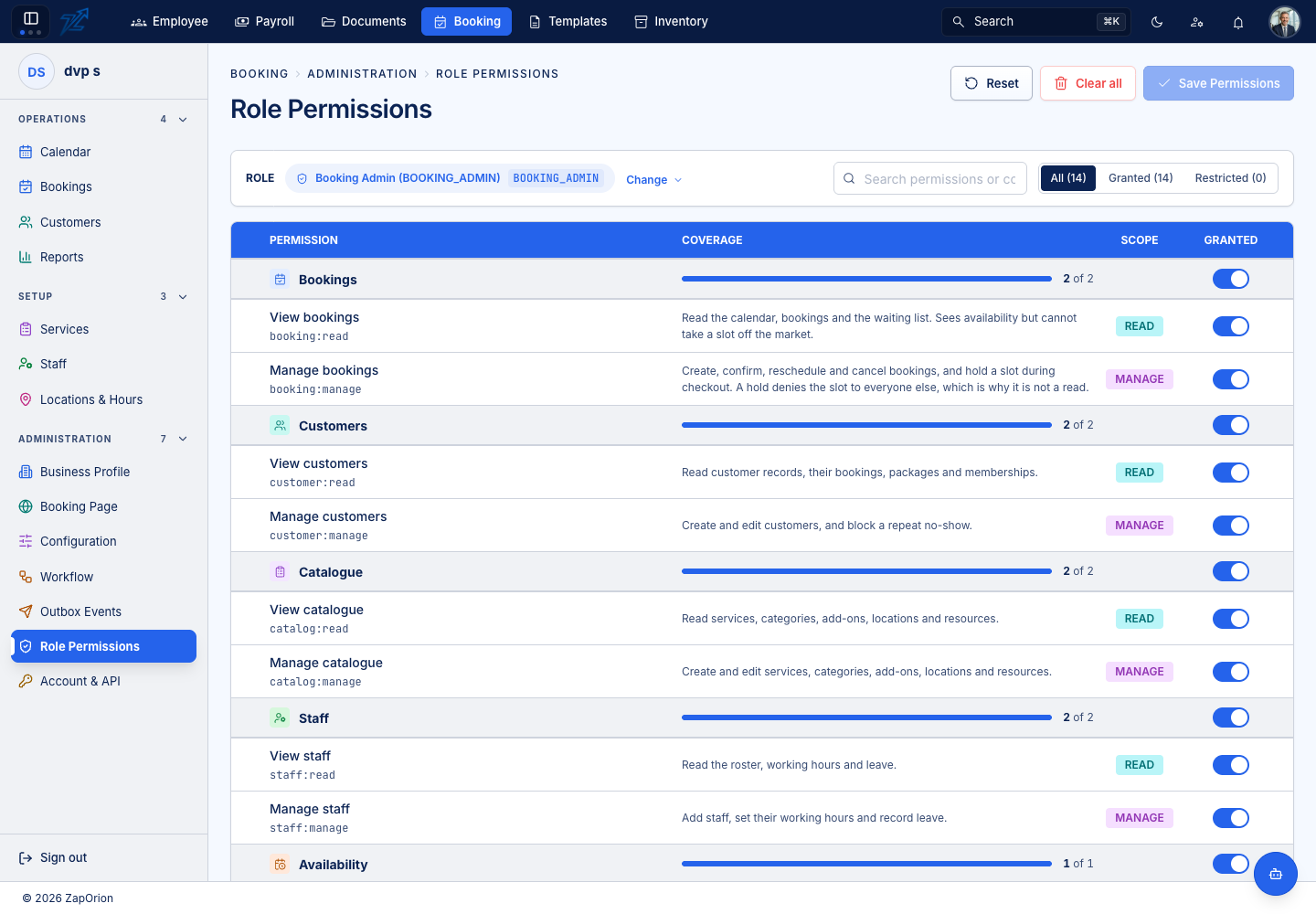
Using the screen
- Pick the Role (for example Booking Admin) and choose Change to switch to another.
- Use the filters All, Granted and Restricted, with counts, to focus.
- Each permission shows its key (for example
booking:read), a description and a scope badge (Read, Manage, Admin …). Groups — Bookings, Catalogue, Staff, Customers, Availability, Payments, Promotions, Reports — show a coverage count such as 2 of 2. - Toggle what the role should hold, then Save Permissions. Reset discards unsaved changes and Clear all withdraws everything from the role.
Saving applies on the person's next request; nobody has to sign out. The full list of permissions and what each allows is in Roles and access.
:::note Roles come from the identity provider This screen decides what a role may do. Which role a person holds is managed with your sign-in provider (the same one used for the rest of the application). A role that has no permissions mapped signs in successfully and sees nothing. :::