Custom fields and documents
Two tabs on Administration → Configuration (needs booking:admin) let you capture more than the standard fields: Custom Fields and Document Types.
Custom fields
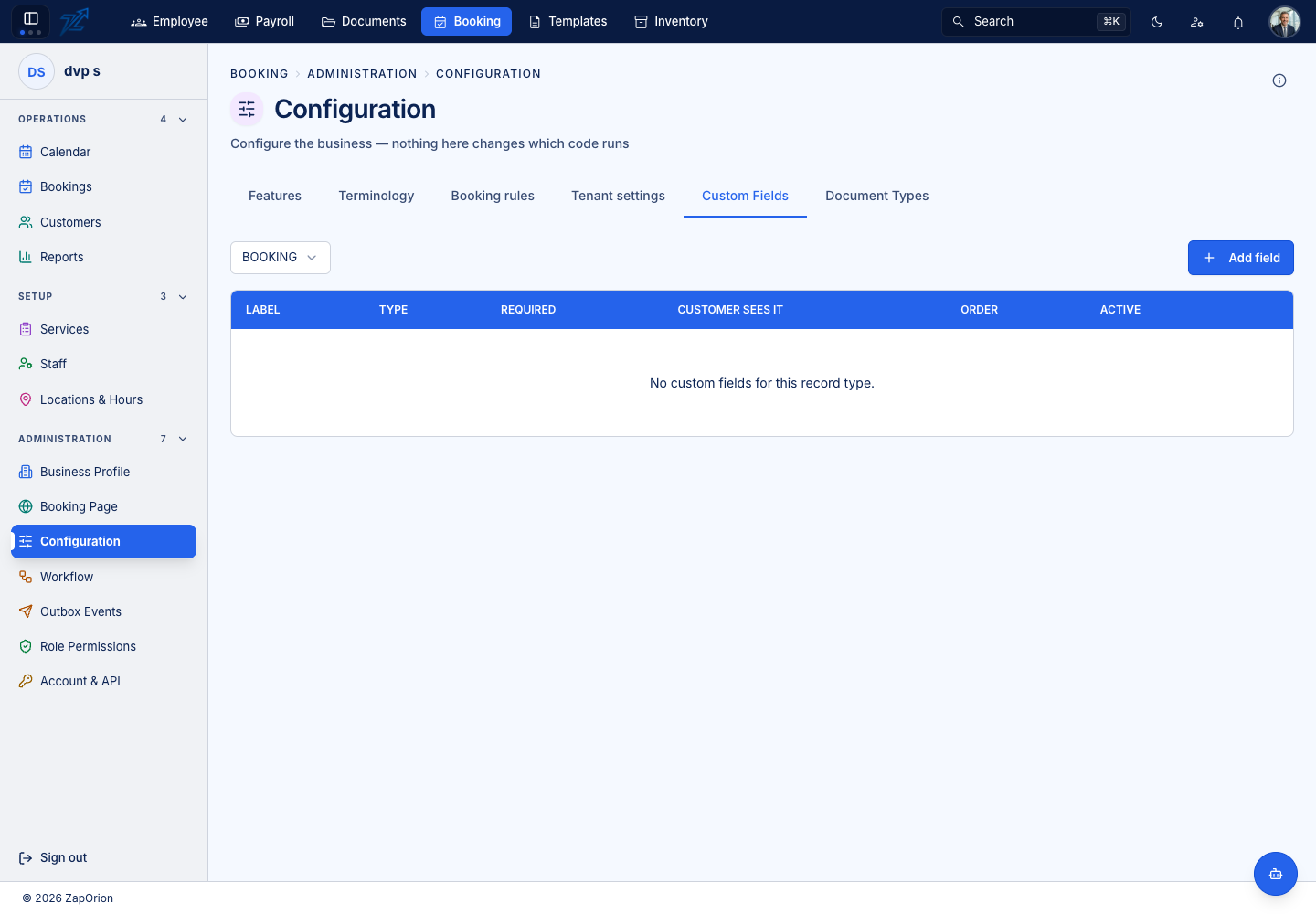
Pick the record type the fields belong to — Booking, Customer, Service, Staff, Resource or Location — then Add field. The list shows each field's Label, Type, Required, Customer sees it, Order and Active.
A definition has a key, a label, a type, whether it is required, whether the customer can see it, its display order and an optional validation pattern. Defining a field is the whole job: it appears wherever that record is edited.
| Record type | Where the field appears |
|---|---|
| Customer | The customer form |
| Service, Staff, Resource, Location | Their forms |
| Booking | The new booking screen, the Additional details card on the booking page, and — for the fields the customer may see — the details step of the public booking page |
Notes:
- Booking fields are scoped by service, so a consultation can ask what a haircut does not.
- Delete deactivates. Answers already captured stay readable; tick Active on the field to bring it back.
- A pick-list field's options are not returned when it is reopened, so re-enter the options when you edit one.
Document types
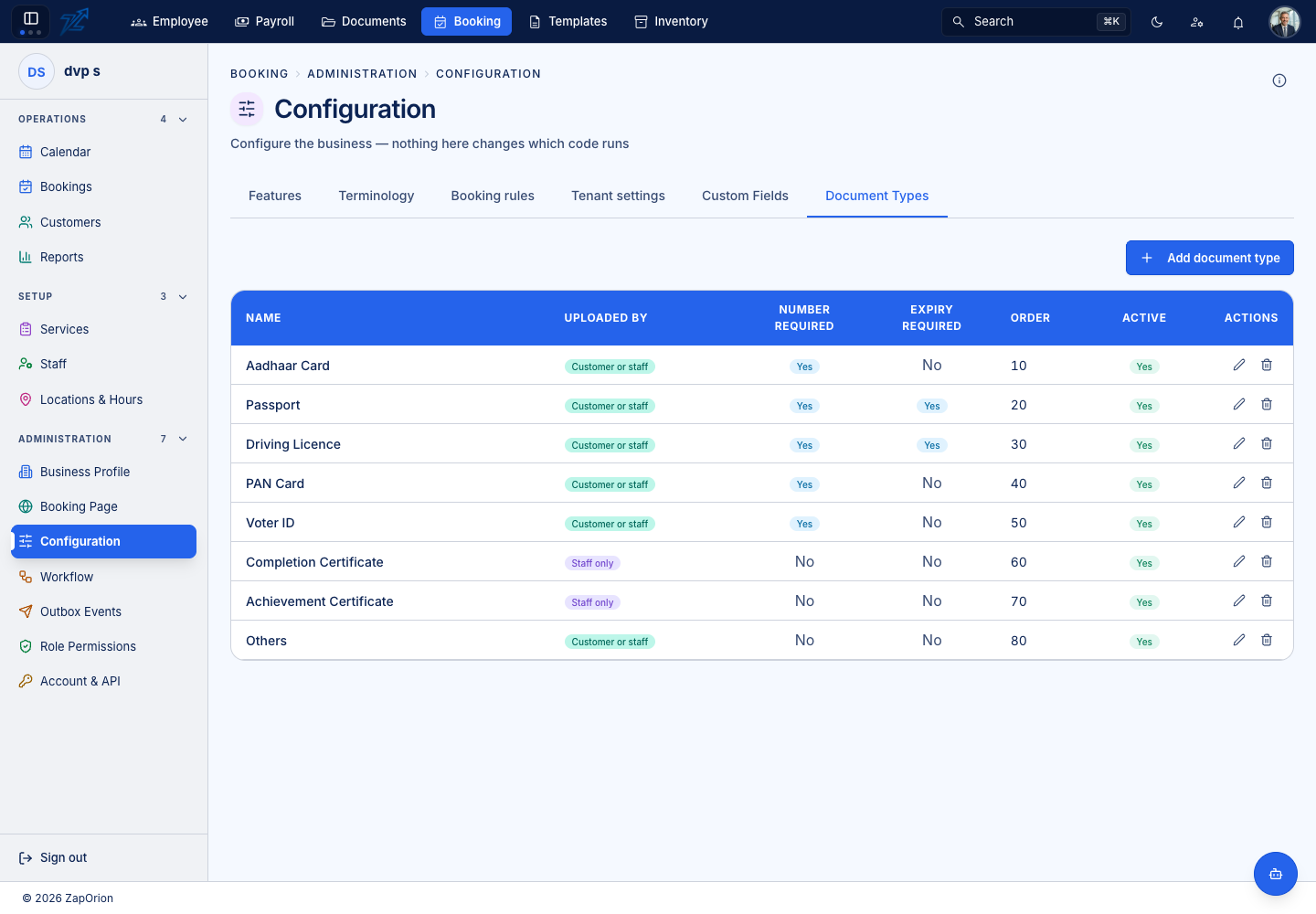
Document types describe the documents a business keeps on a customer — identity cards, licences, certificates. The list shows Name, Uploaded by, Number required, Expiry required, Order and Active; Add document type adds one, and because a type is only a handful of short fields it is edited in the table itself.
A standard set is provided (identity documents such as Aadhaar Card, Passport, Driving Licence, PAN Card and Voter ID, completion and achievement certificates, and Others). For each type you decide:
- Uploaded by — Customer or staff, or Staff only. The customer portal offers a customer only the types they may upload.
- Number required — the document's number must be entered.
- Expiry required — an expiry date must be entered.
If automatic reading is on (the tenant setting documents.ai-extraction.enabled), an uploaded document is read to detect its type and fill in the number and dates. Documents are uploaded and viewed from the customer's page; viewing fetches a short-lived signed link each time.