Booking page
Administration → Booking Page — the page customers book on, and the code that puts it on your website. Needs booking:admin, and the Online booking feature must be on. A badge reads Accepting bookings when the public page is live; Open opens it.
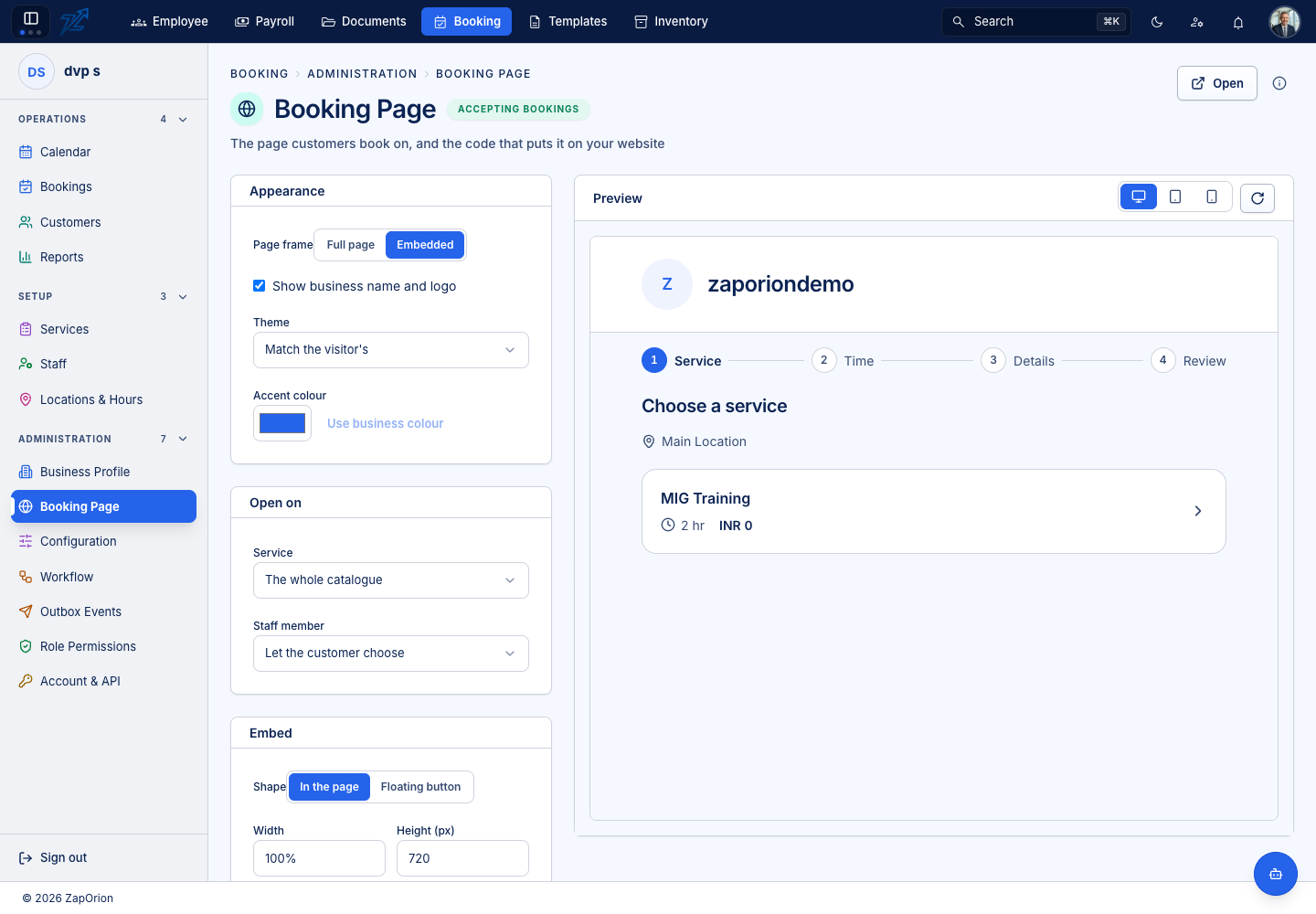
The public page is a separate customer-facing site that reads this business's catalogue and availability. To publish it: turn on Allow public booking in the Business Profile, keep Online booking on, choose the public rules in Configuration → Booking rules and mark each service Bookable online.
Appearance
- Page frame — Full page or Embedded (no outer chrome, for placing inside your own site).
- Show business name and logo.
- Theme — Match the visitor's, Light or Dark.
- Accent colour — a colour of your own, or Use business colour.
Open on
Where the page starts: Service (the whole catalogue, or one service), Location (let the customer choose, or fix one) and Staff member.
Embed
Choose the Shape — In the page (set Width and Height) or Floating button (set the Button label, Corner — bottom right or bottom left — and Button colour). The page then shows two things to copy into your website: the Link and the Script, each with a Copy button.
Preview
Preview the page at Desktop, Tablet or Mobile size and reload it after a change. If the business has no public page yet the page says so.